

OBSERVERS
You are viewing stock in the "OBSERVERS" category. We currently have 38 books in this category in stock.
38 stock records found. Did you know that you can now search our sold stock? Look for the 'sold stock' filter at the bottom of the filter options.
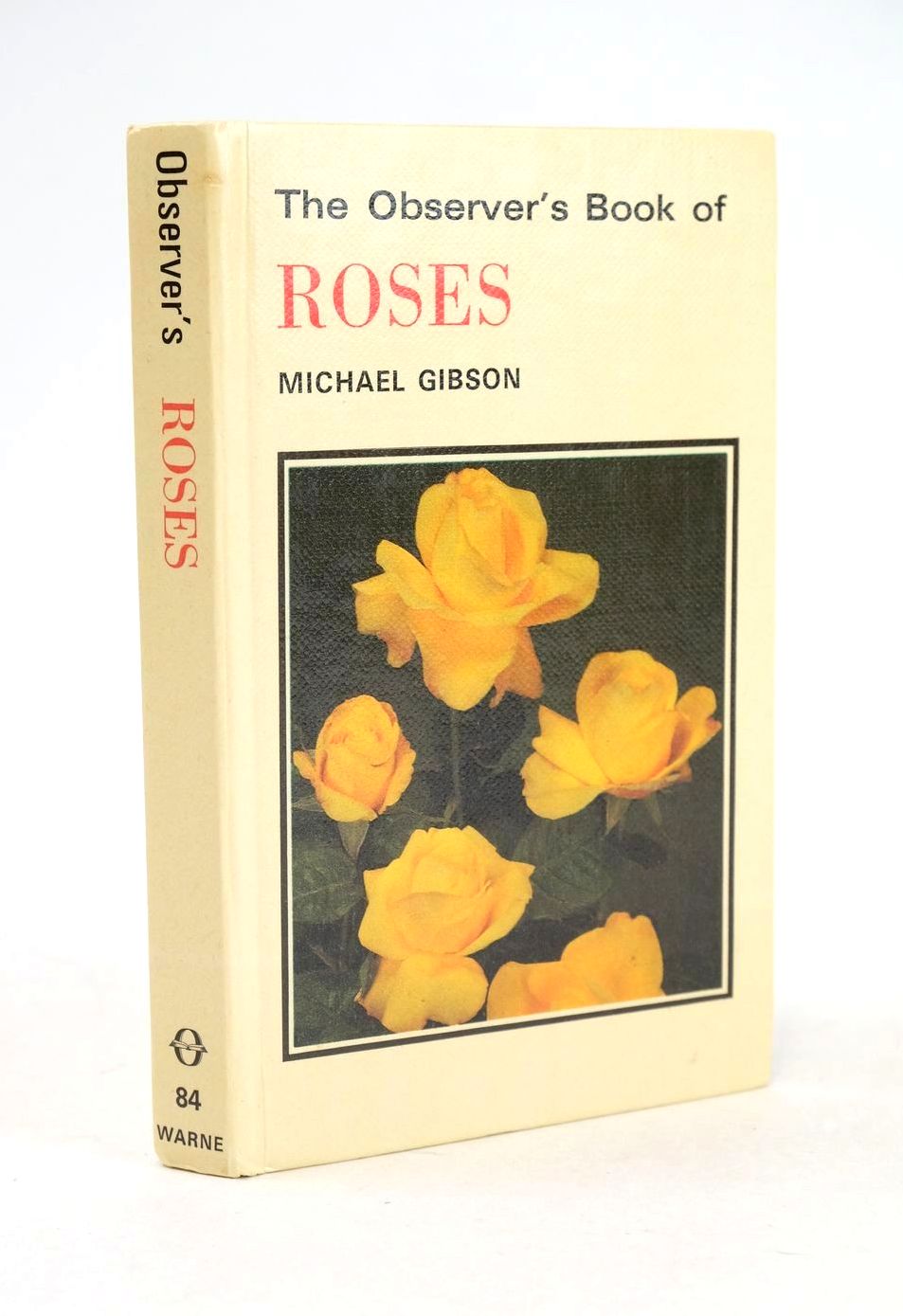
THE OBSERVER'S BOOK OF ROSES
Written by Michael Gibson.
Stock no. 1326135
Published by Frederick Warne.
1st
1980.
Very good condition.
Observer book no. 84. Glazed pictorial boards. With 130 Colour photographs and 12 line drawings. ISBN: 0723216061. Spine slightly bumped. Covers very slightly browned (as is usual with these bindings). Inscription in ink to front pastedown. Contents clean.
 View more images
THE OBSERVER'S BOOK OF KITCHEN ANTIQUES
Written by John Woodforde.
Illustrated by Trevor Aldous.
Stock no. 1826262
Published by Frederick Warne & Co Ltd..
1st
1982.
Very good condition.
Observer book No. 97. Laminate boards. Illustrating and describing of 230 household objects from the 17th century to the 20th century. ISBN: 0723216371. Spine lightly browned with black mark to lower half, red title to spine slightly faded. A few marks to boards. Top and vertical edge of text block is greyed/discoloured. A few minor marks to contents.
- Categorised in:
- OBSERVERS
- ANTIQUES
- COLLECTING
 View more images
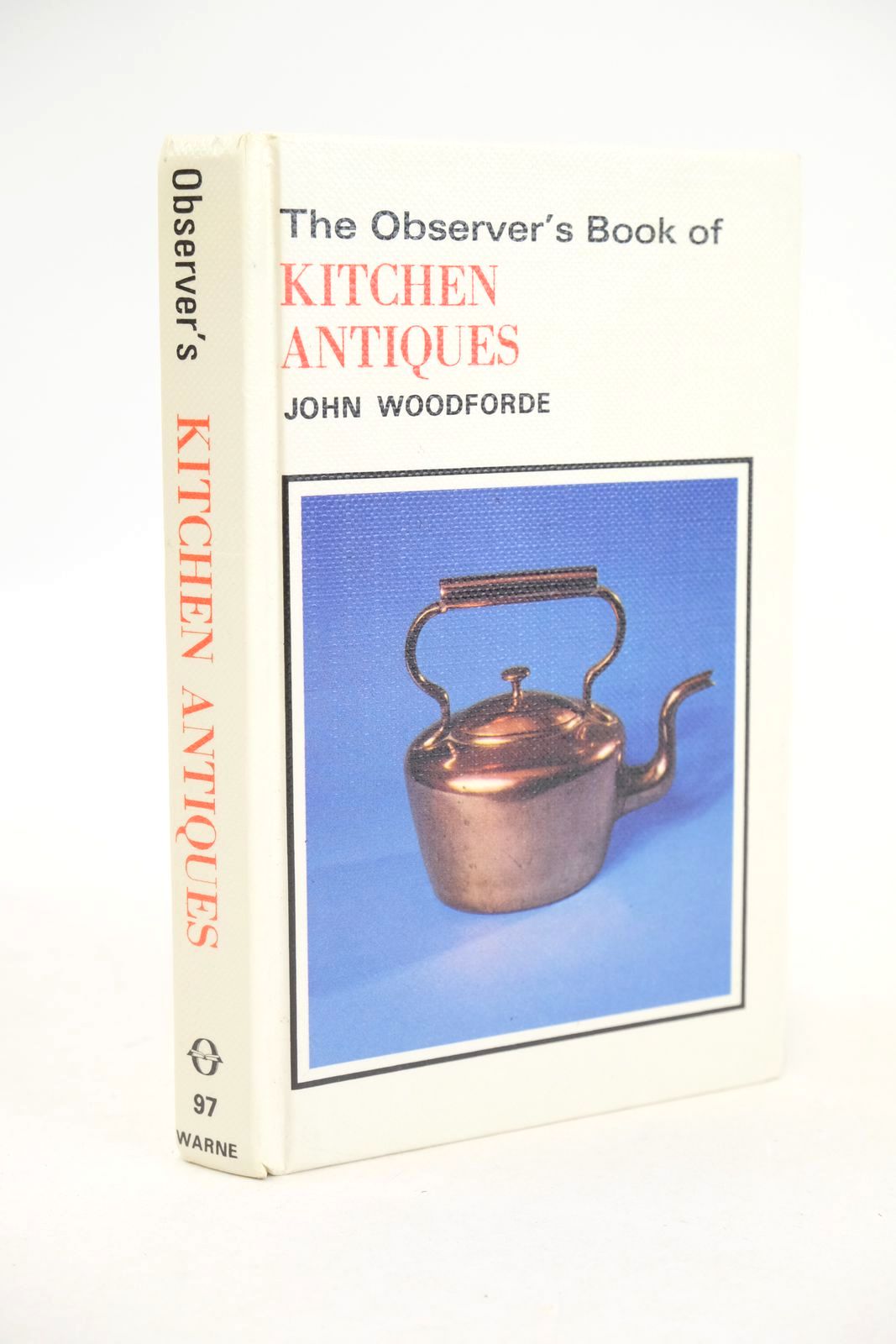
THE OBSERVER'S BOOK OF KITCHEN ANTIQUES
Written by John Woodforde.
Illustrated by Trevor Aldous.
Stock no. 1325769
Published by Frederick Warne & Co Ltd..
1st
1982.
Very good condition.
Observer book No. 97. Laminate boards. Illustrating and describing of 230 household objects from the 17th century to the 20th century. ISBN: 0723216371. Spine and corners slightly bumped. Endpapers lightly foxed and marked.
- Categorised in:
- OBSERVERS
- ANTIQUES
- COLLECTING
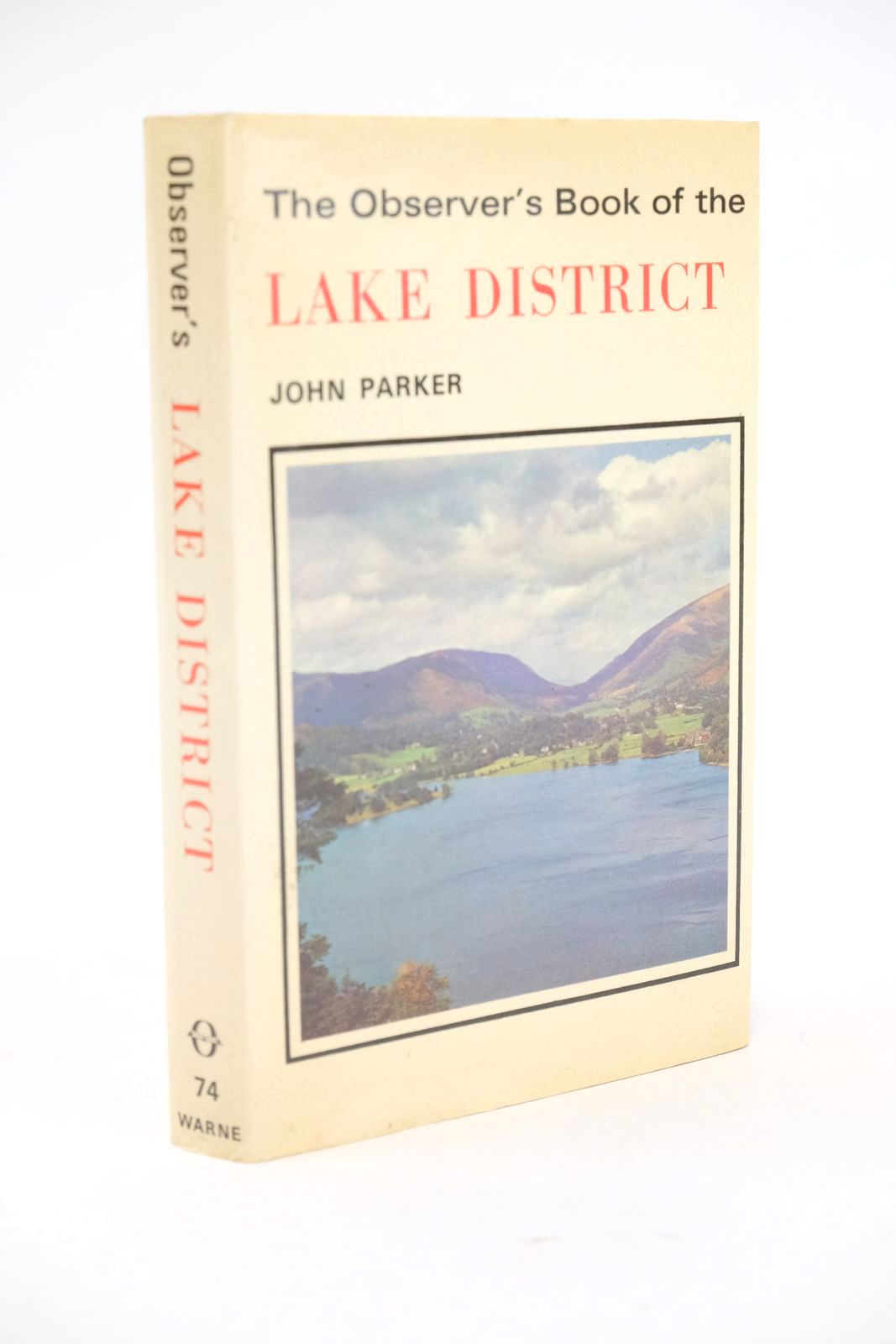
THE OBSERVER'S BOOK OF THE LAKE DISTRICT
Written by John Parker.
Stock no. 1325724
Published by Frederick Warne & Co Ltd..
1st
1978.
Very good condition in a very good dustwrapper.
Observer Series No. 74. With 8 Colour plates and 67 Black and white photographs. ISBN: 0723215707. Minimal bumping/fading to top and tail of spine. Pale page edge browning else contents clean. Price-cut wrapper is slightly browned.
- Categorised in:
- OBSERVERS
- TOPOGRAPHY (UK)
- NORTH WEST UK
- LAKE DISTRICT
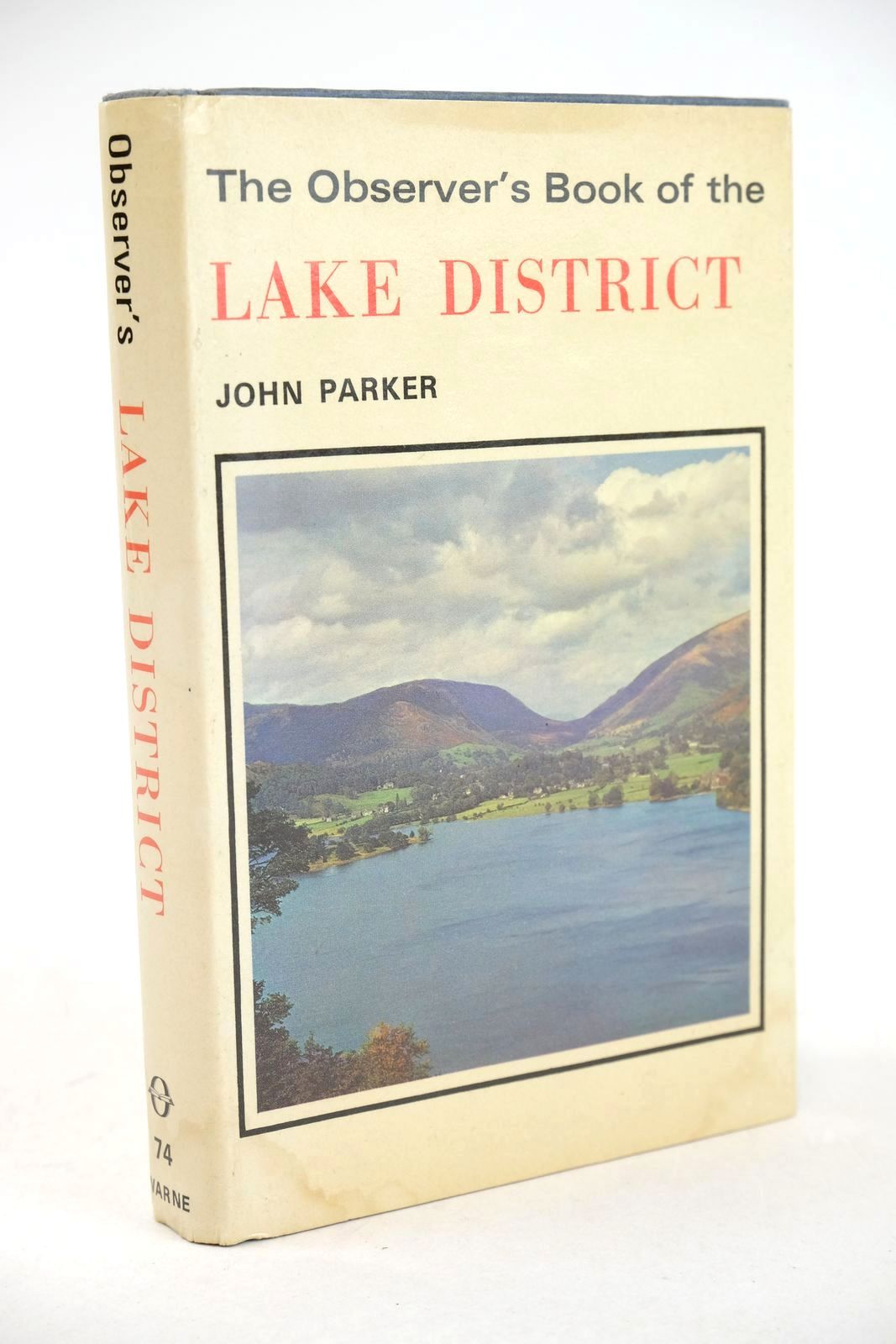
THE OBSERVER'S BOOK OF THE LAKE DISTRICT
Written by John Parker.
Stock no. 1325636
Published by Frederick Warne & Co Ltd..
1st
1978.
Very good condition in a very good dustwrapper.
Observer Series No. 74. With 8 Colour plates and 67 Black and white photographs. ISBN: 0723215707. Spine bumped. Dustwrapper has light stain to base of spine and lower corners. Tiny piece missing from lower edge of front flap.
- Categorised in:
- OBSERVERS
- TOPOGRAPHY (UK)
- NORTH WEST UK
- LAKE DISTRICT

THE OBSERVER'S BOOK OF WEATHER
Written by Robert Pearce.
Illustrated by Ray Martin.
Stock no. 1824689
Published by Frederick Warne.
1st
1980.
Very good condition.
Observer No. 22. Glazed pictorial boards. With 16 colour photographs, 36 b/w photographs and 64 line drawings. ISBN: 0723216053. Top & tail of spine lightly shelf worn, title to spine very slightly faded (minor), board corners lightly rubbed. Minor foxing to text block. Tip of top corners of boards and contents lightly bumped. Very minor imperfections!
- Categorised in:
- OBSERVERS
- METEOROLOGY AND CLIMATE
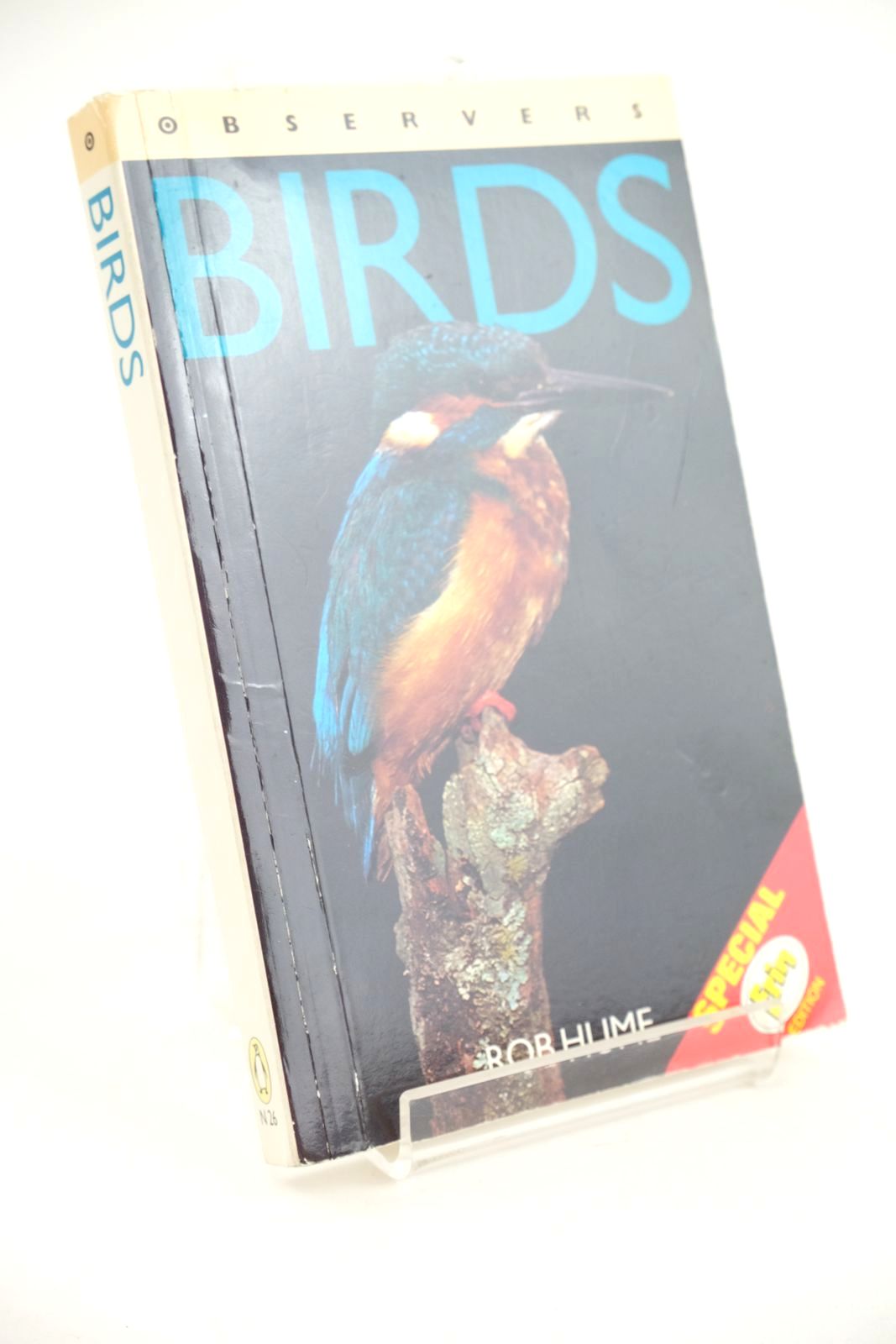
OBSERVERS BIRDS
Written by Rob Hume.
Stock no. 1323731
Published by Frederick Warne.
Circa
1987.
Very good condition.
N26 in the New Observer's Series. Paperback. ISBN: 0723216851. Slight rubbing to cover edges. Contents clean.
- Categorised in:
- OBSERVERS
- NATURAL HISTORY
- ORNITHOLOGY
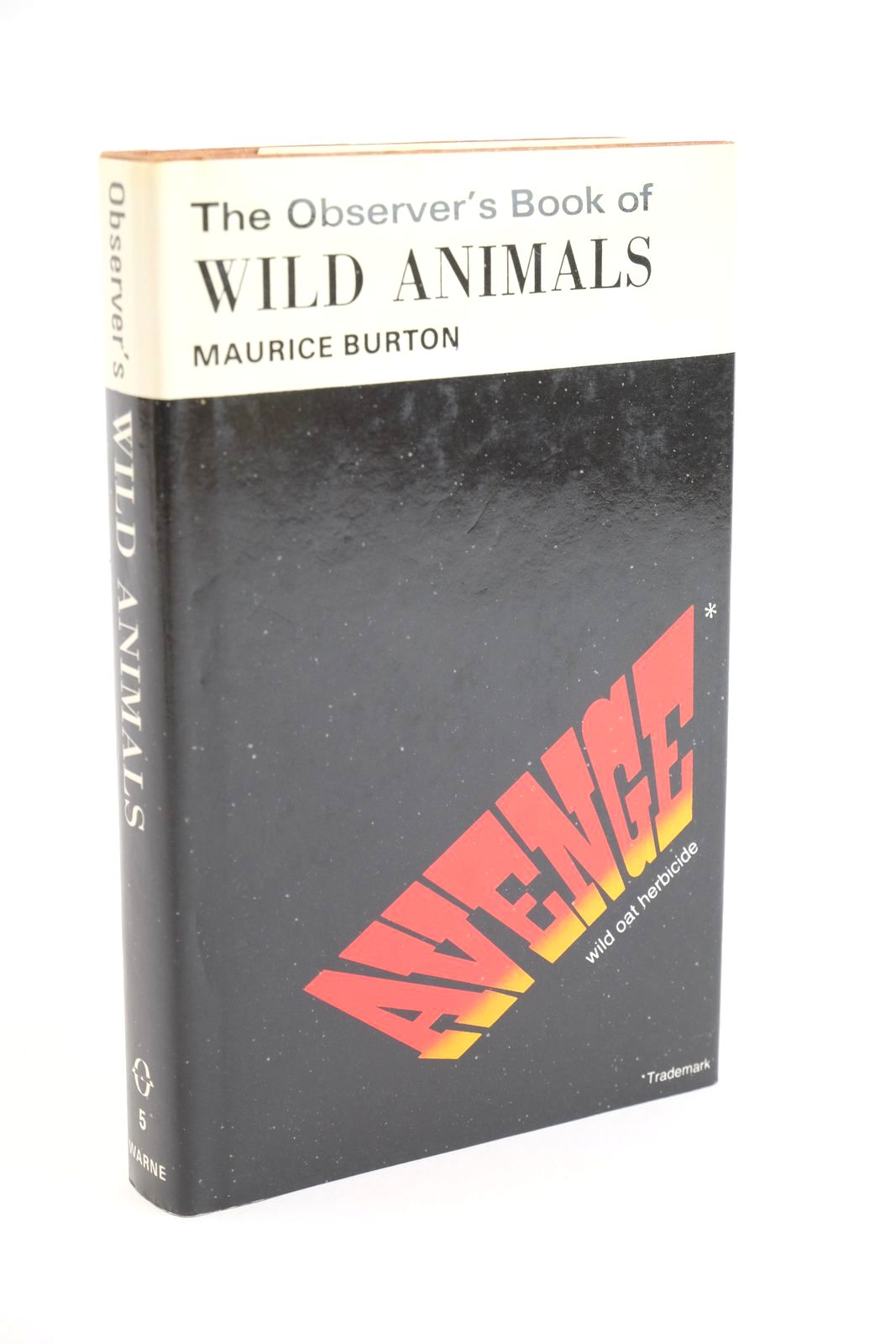
THE OBSERVER'S BOOK OF WILD ANIMALS (CYANAMID WRAPPER)
Written by Maurice Burton.
Stock no. 1323652
Published by Frederick Warne & Co Ltd..
1978.
Slightly better than very good condition in a slightly better than very good dustwrapper.
Observer book No. 5. Revised editon. In rare advertising wrapper. Endpapers very slightly browned. A bright copy.
- Categorised in:
- OBSERVERS
- NATURAL HISTORY
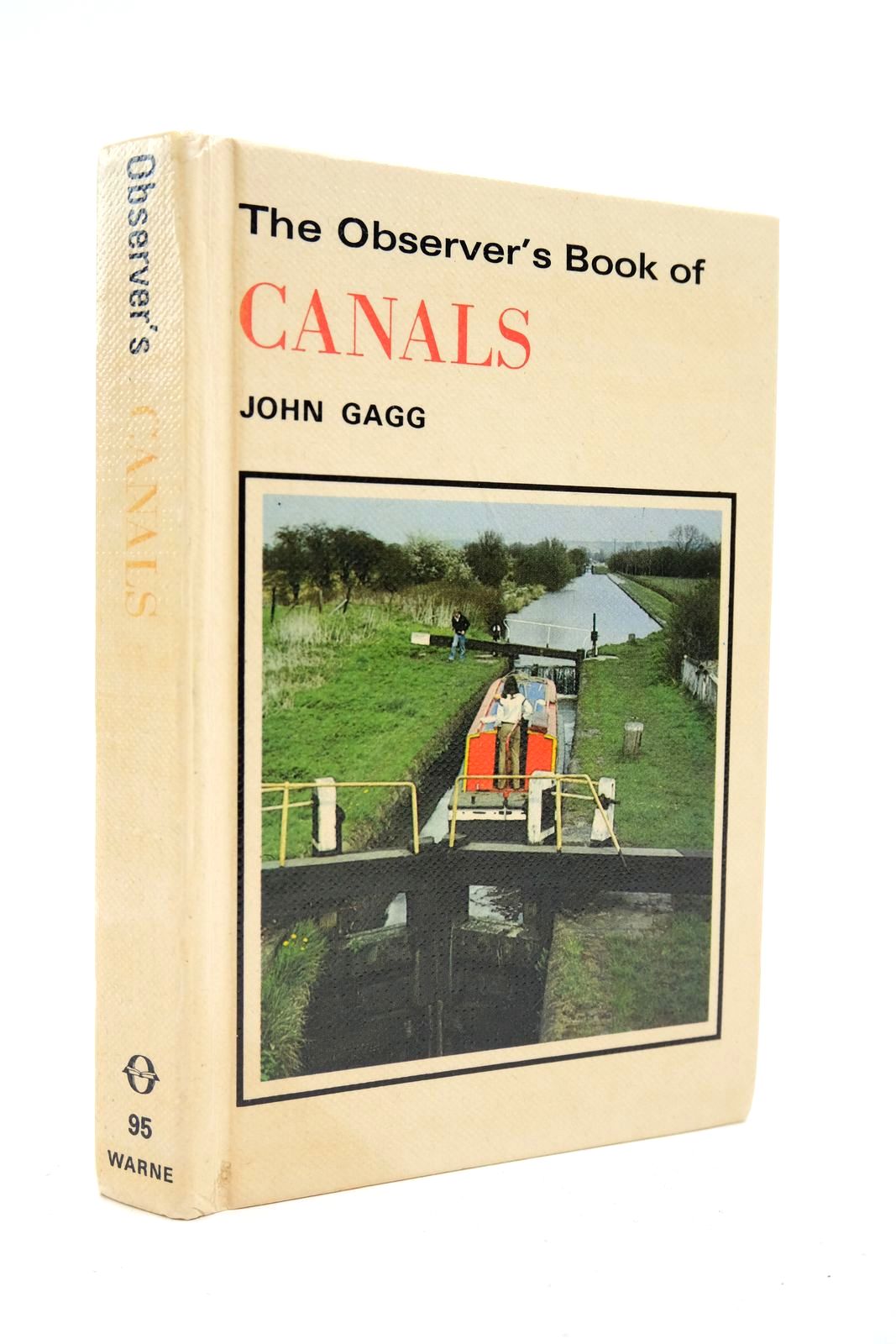
THE OBSERVER'S BOOK OF CANALS
Written by John Gagg.
Illustrated by Robert Wilson.
Stock no. 2140428
Published by Frederick Warne (Publishers) Ltd..
1st
1982.
Very good condition.
Observers Series No. 95. Laminate boards. With photographs and drawings. ISBN: 0723216258. Title to spine is faded. Covers are browned. Light foxing and browning to endpapers and outer page edges.
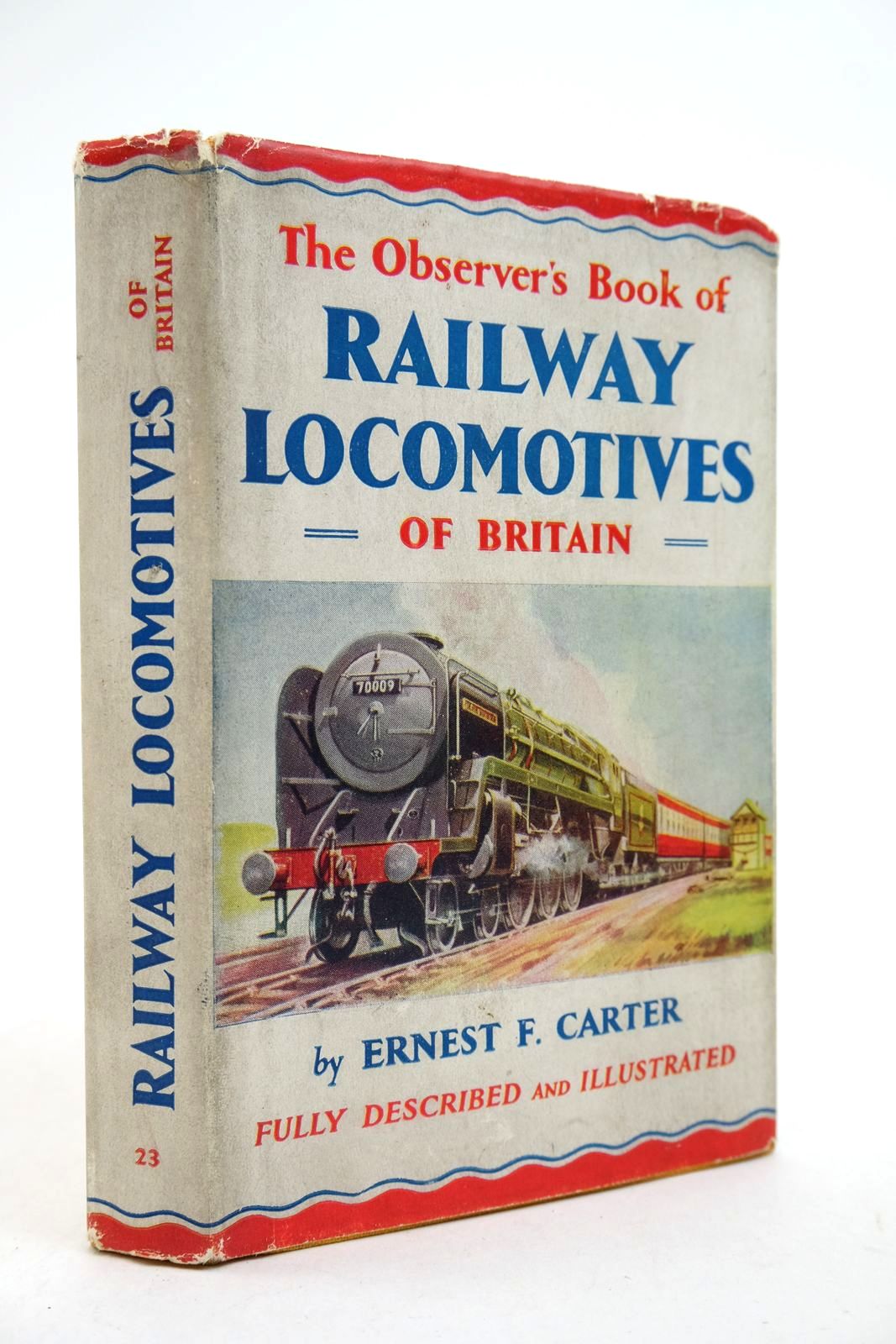
THE OBSERVER'S BOOK OF RAILWAY LOCOMOTIVES OF BRITAIN
Written by Ernest F. Carter.
Illustrated by Kenneth E. Carter.
Stock no. 2140311
Published by Frederick Warne & Co Ltd..
1st
1955.
Very good condition in a almost very good dustwrapper.
Observers Series No. 23. Describing the steam locomotives of Britain with 8 colour plates and over 200 photographs. Name and address in ink to front endpaper. Some grubby marks to endpapers and outer page edges. Wrapper is grubby with edge-creasing and chips; minimal loss.
- Categorised in:
- OBSERVERS
- TRANSPORT
- RAILWAYS
- LOCOMOTIVES
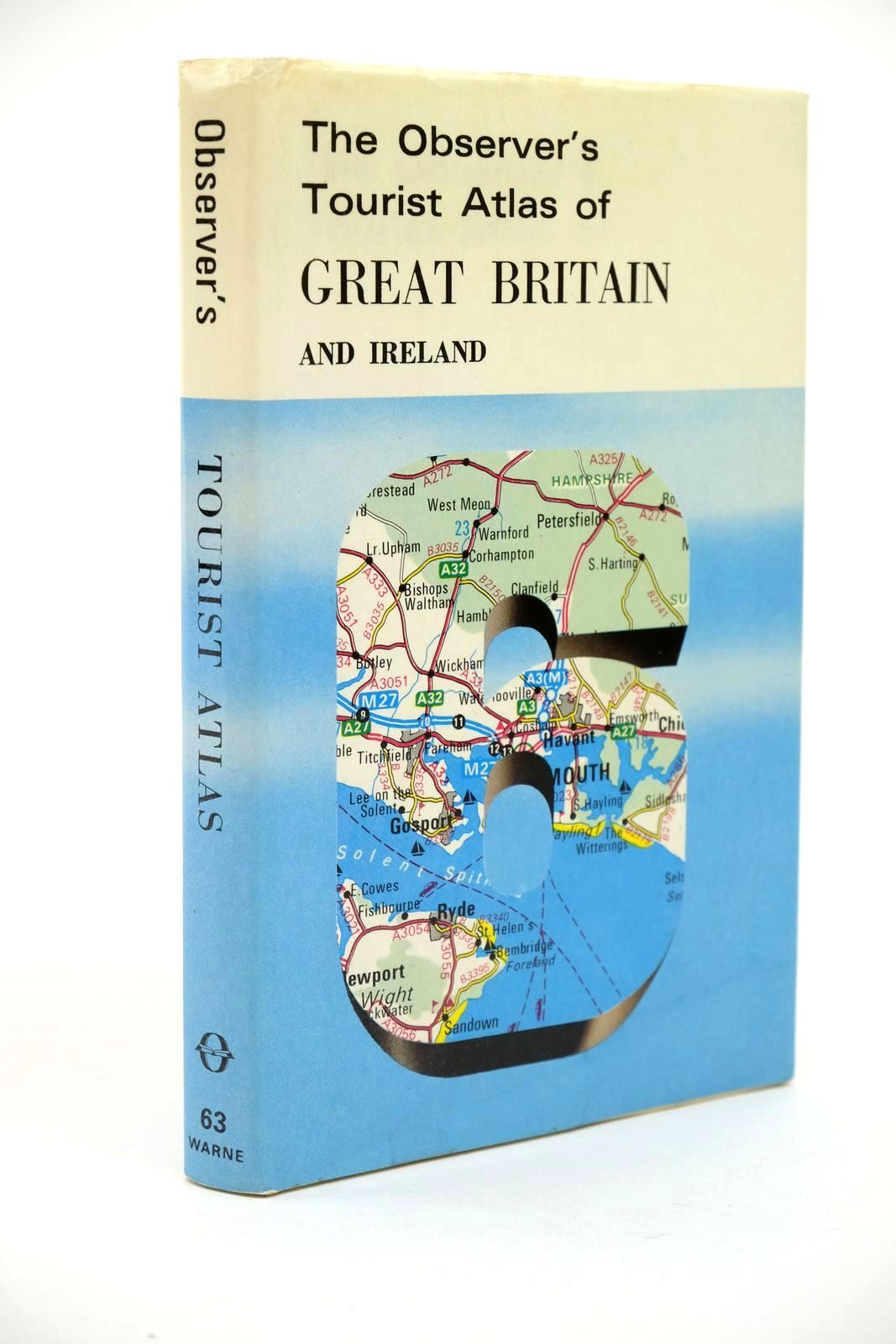
THE OBSERVER'S TOURIST ATLAS OF GREAT BRITAIN AND IRELAND (CYANAMID WRAPPER)
Written by John Bartholomew.
Stock no. 1323055
Published by Frederick Warne & Co Ltd..
1981.
Very good condition in a very good dustwrapper.
Observers Series No. 63. Laminate boards. In rare advertising wrapper. Covers and contents clean. Dustwrapper is slightly edge creased with some faint damp stains.
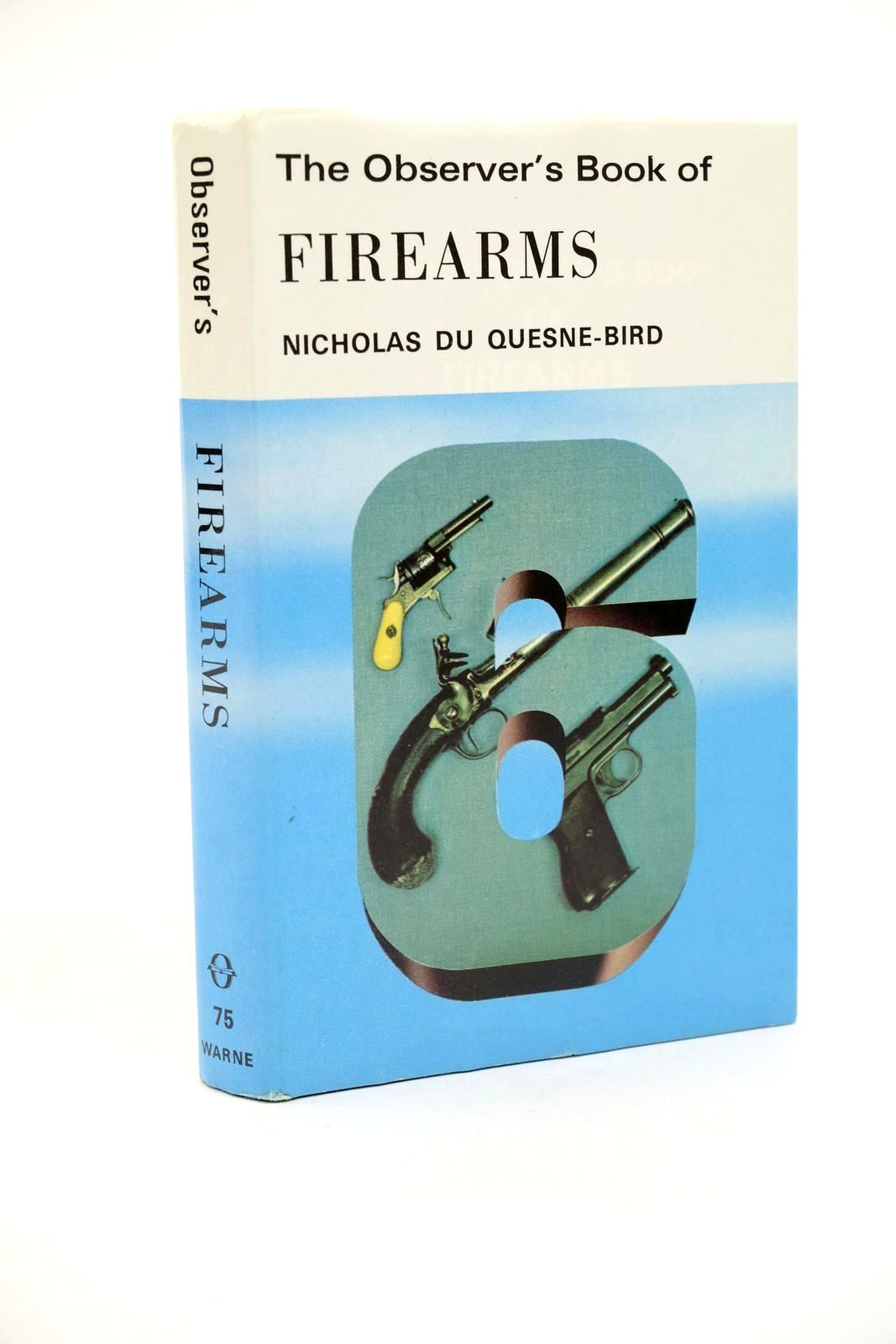
THE OBSERVER'S BOOK OF FIREARMS (CYANAMID WRAPPER)
Written by Nicholas Du Quesne-Bird.
Stock no. 1323051
Published by Frederick Warne (Publishers) Ltd..
1st
1978.
Slightly better than very good condition in a slightly better than very good dustwrapper.
Observer's Book No. 75. With 119 Black and white photographs and 9 line drawings. ISBN: 0723215715. Minimal bumping to spine. Dustwrapper (1982 Cyanamid) is just a little edge creased.